VPS in France, delivered in one minute, no commitment

The VPS Minute console, screen by screen

Your VPS, their IP addresses, the firewall, the private network and your invoices are all managed in one place. These are the real console screens, taken on a demo account.

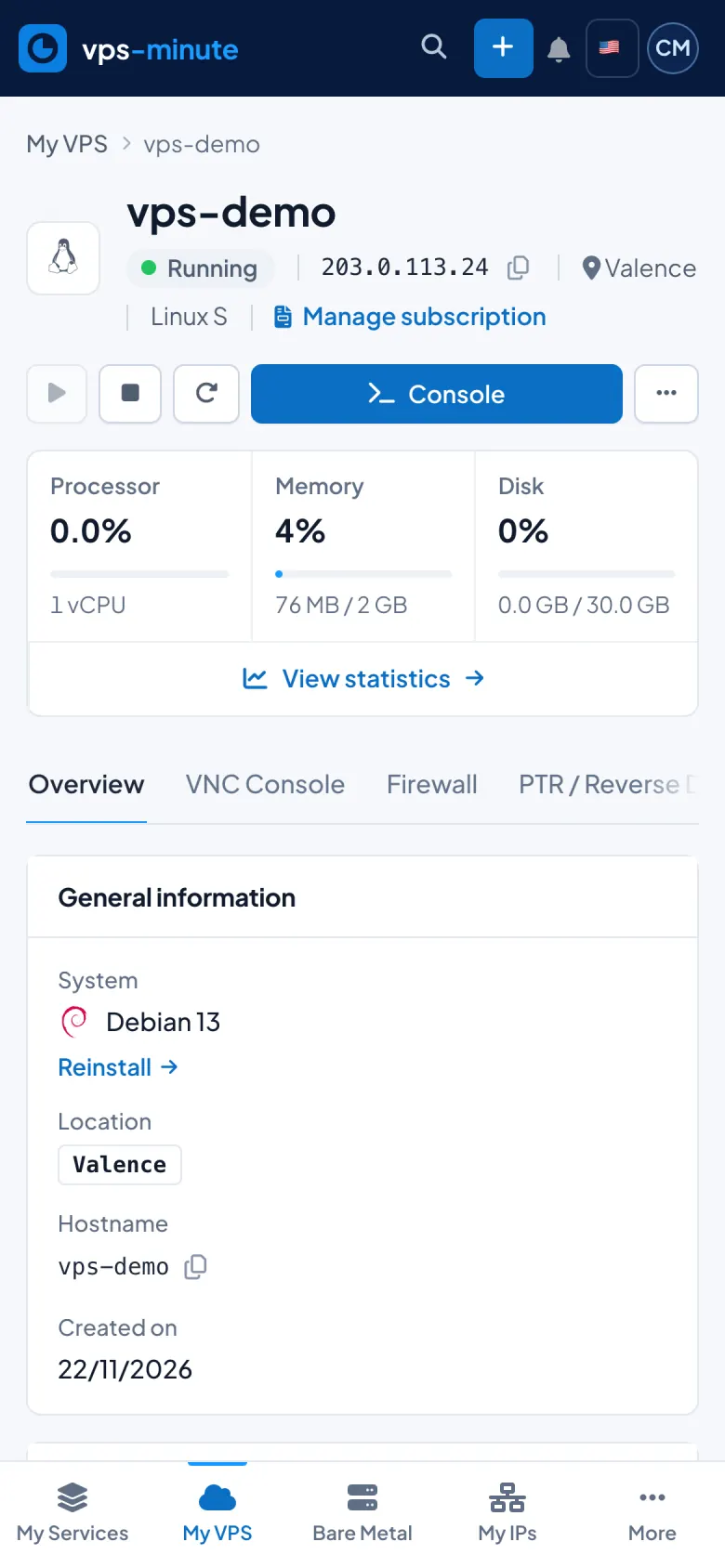
VPS page of the console on a phone

Your services

All your services on one page

When you log in, the console opens on your services: status, IP address, location and next due date. Your balance and latest invoice sit just below.

My Services page of the console: services summary, next due date and balance, then the list of VPS with their status, IP address and location.
  1. Search Find a VPS, an IP or a page from the keyboard with Ctrl K.

  2. Create Order a VPS, a dedicated server or a failover IP from any page. Help : Create

  3. Your VPS Each row opens the VPS page.

  4. Available balance The amount ready to pay your next invoices. Help : Available balance

Your VPS

The VPS page

Everything about a VPS fits on its page: status, load, access details and settings tabs.

VPS page: Start, Stop, Restart and Console buttons, CPU, memory and disk load, tabs, IP address, username and root password.
  1. Start, stop, restart The buttons at the top act on the VPS right away. Help : Start, stop, restart

  2. Console Opens the VPS screen in your browser. Help : Console

  3. Reinstall Start again from a clean install or switch systems. Help : Reinstall

  4. Connection IP address, username and root password, each with a Copy button. Help : Connection

  5. Tabs VNC console, firewall, reverse DNS, private network, backups, statistics and history of the VPS.

The VNC console

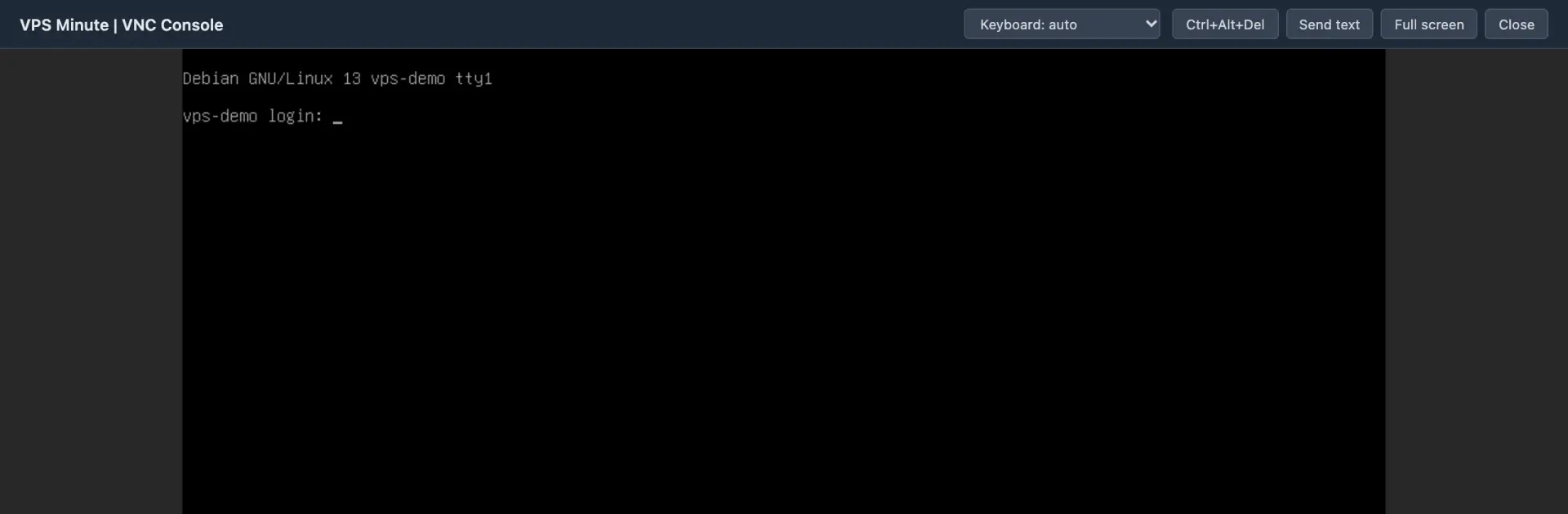
It shows the VPS screen in your browser, even when SSH or Remote Desktop stops responding. It is enabled for free in one click from the VPS page, in about 2 minutes.

VNC console open in the browser on a Debian VPS, at the login prompt.
  1. Ctrl+Alt+Del Sends the key combination to the VPS, for example to open a session on a Windows server. Help : Ctrl+Alt+Del

  2. Send text Pastes text into the VPS screen, such as a long password, without typing it key by key. Help : Send text

Copies of your VPS

Every VPS includes one snapshot, a copy you take whenever you want, for example before an update. The VPS in the screenshot also has the Daily backup option: one copy every night, kept for 7 days.

Backups tab of a VPS with the Daily backup option and the Create a backup button.
  1. Create a backup An on-demand copy that you restore from the same list. Help : Create a backup

  2. What the VPS includes The tab shows the included copies and the options you took. Help : What the VPS includes

Networking

Your IP addresses

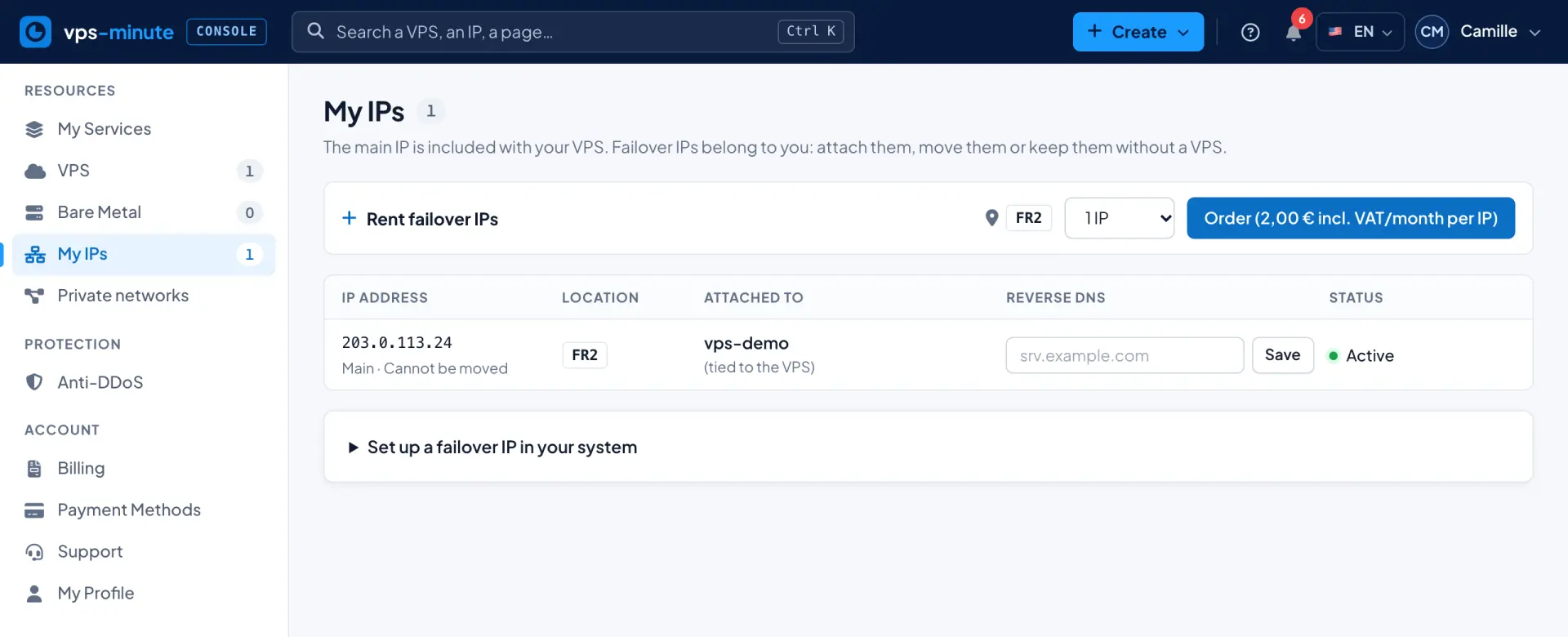
The main IP is included with the VPS. Failover IPs stay yours: attach them to a VPS, move them, or keep them without a VPS.

My IPs page: failover IP order by location, then the list of addresses with their VPS, reverse DNS and status.
  1. Rent failover IPs Pick the location and the number of IPs, at €2.00 incl. VAT per month and per IP. Help : Rent failover IPs

  2. Reverse DNS Enter the name to map to the IP: it is set as soon as that name points to it. Help : Reverse DNS

  3. Configure a failover IP How to declare the IP in the operating system of the VPS. Help : Configure a failover IP

The firewall

Included with every VPS, it filters traffic before it reaches the server, on Linux and Windows alike.

Firewall tab of a VPS: firewall mode, Enable button, SSH, RDP, HTTP, HTTPS and ping rule templates, add rule form.
  1. Mode Everything open except your block rules, or everything closed except your allow rules. Nothing changes until you click Enable. Help : Mode

  2. Templates SSH, RDP, HTTP, HTTPS and ping fill in the rule in one click. Help : Templates

  3. Add Rule Protocol, port, source address, direction and action: the rule joins the list of active rules. Help : Add Rule

The private network

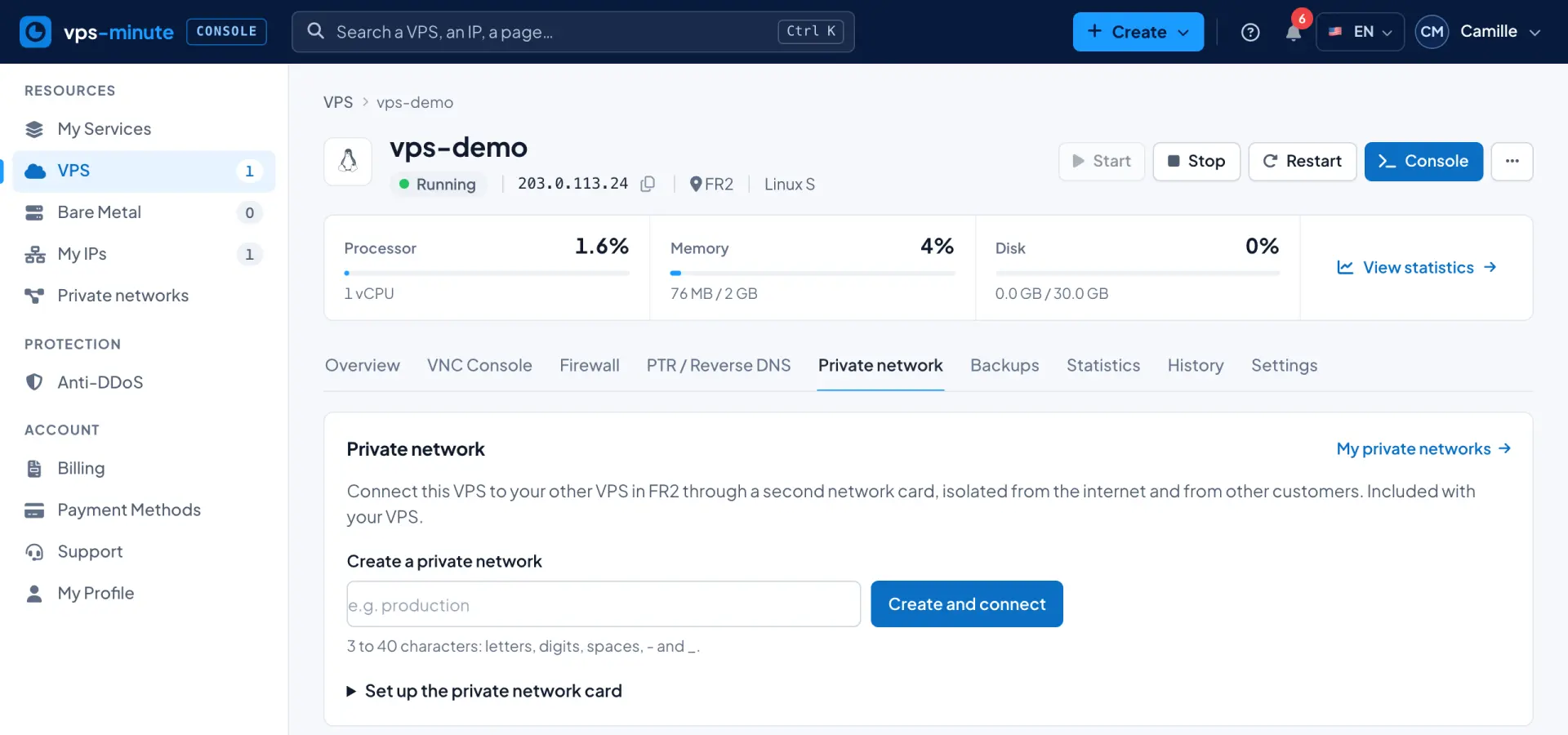
Connect VPS in the same location through a second network card. This traffic never goes through the internet, and the private network is included.

Private network tab of a VPS: network name, Create and connect button, help to set up the private network card.
  1. Network name For example production, staging or database.

  2. Create and connect The network is created and this VPS gets its private address on it. Help : Create and connect

  3. Set up the private network card What to do if the system does not pick up its private address on its own. Help : Set up the private network card

Private networking in detail

Billing and balance

Invoices and balance

Your invoices, paid or due, each with its PDF. Your balance is topped up by card, PayPal or cryptocurrency and pays your invoices.

My invoices page: available balance, Crypto deposit and Add funds buttons, invoice history with status, amount and PDF.
  1. Available balance Topped up by card or PayPal with the Add funds button. Help : Available balance

  2. Crypto deposit Top up your balance in cryptocurrency, from €15 (5% fee). Help : Crypto deposit

  3. View Each invoice opens online or downloads as a PDF. Help : View

The API

The API

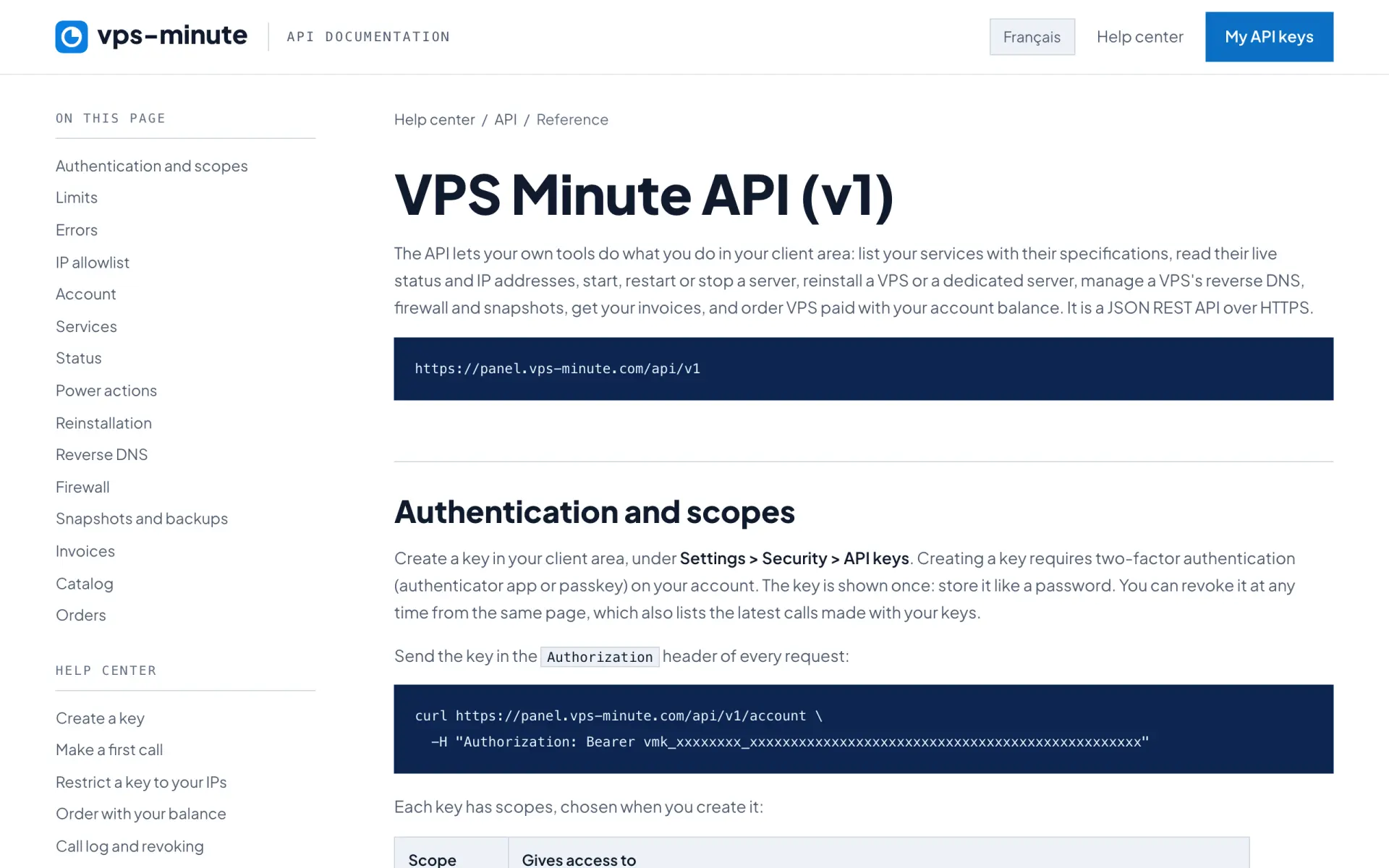
Your tools drive your VPS through a JSON REST API, without opening the client area: open the console of a VPS, create a private network and attach your VPS to it, move a failover IP, order a VPS paid from your balance. Webhooks notify your server as soon as a VPS is delivered or an invoice is paid.

VPS Minute API documentation: API address, key authentication, list of sections.
  1. API address Every request carries your key in the Authorization header. Help : API address

  2. My API keys Each key has its own scopes and can be restricted to your IP addresses. Creating one requires two-factor authentication. Help : My API keys

Read the API documentation

What else the console does

Get a VPS ready at delivery, get notified, work as a team, automate: each feature has its page in the help center.

SSH keys

Store your public keys in your account, then tick them when you order or reinstall a Linux VPS: you log in as root with your key from delivery. Help : SSH keys

First boot script

Paste a script when you order or reinstall a Linux VPS: it runs once, as root, and the VPS arrives configured. Help : First boot script

One-click apps

Docker, Coolify, n8n, WireGuard or OpenClaw on Ubuntu and Debian, MetaTrader 5 on Windows: picked at checkout, installed on first boot, at no extra cost. Help : One-click apps

Threshold alerts

A CPU, memory, disk or monthly traffic threshold per VPS: you are notified when it is crossed, then when things are back to normal. Free. Help : Threshold alerts

Team and activity log

Invite a colleague, a contractor or your accountant without sharing your password: a role, the VPS they can see, and every action recorded in the log. Help : Team and activity log

Load balancer

One IP address in front of several VPS in the same location, over HTTP, HTTPS or TCP. A VPS that stops responding is taken out within seconds. €5.98 a month incl. VAT. Help : Load balancer

Webhooks

Your server receives a signed event as soon as a VPS is delivered, an invoice is paid or your balance drops below your threshold. Help : Webhooks

Automatic top-up

Below the threshold you choose, your balance is topped up from your card, so your renewals go through without you thinking about it. Help : Automatic top-up

Command line

vpsm drives your VPS from a Linux, macOS or Windows terminal and does everything the API does. A Terraform provider is coming soon. Help : Command line

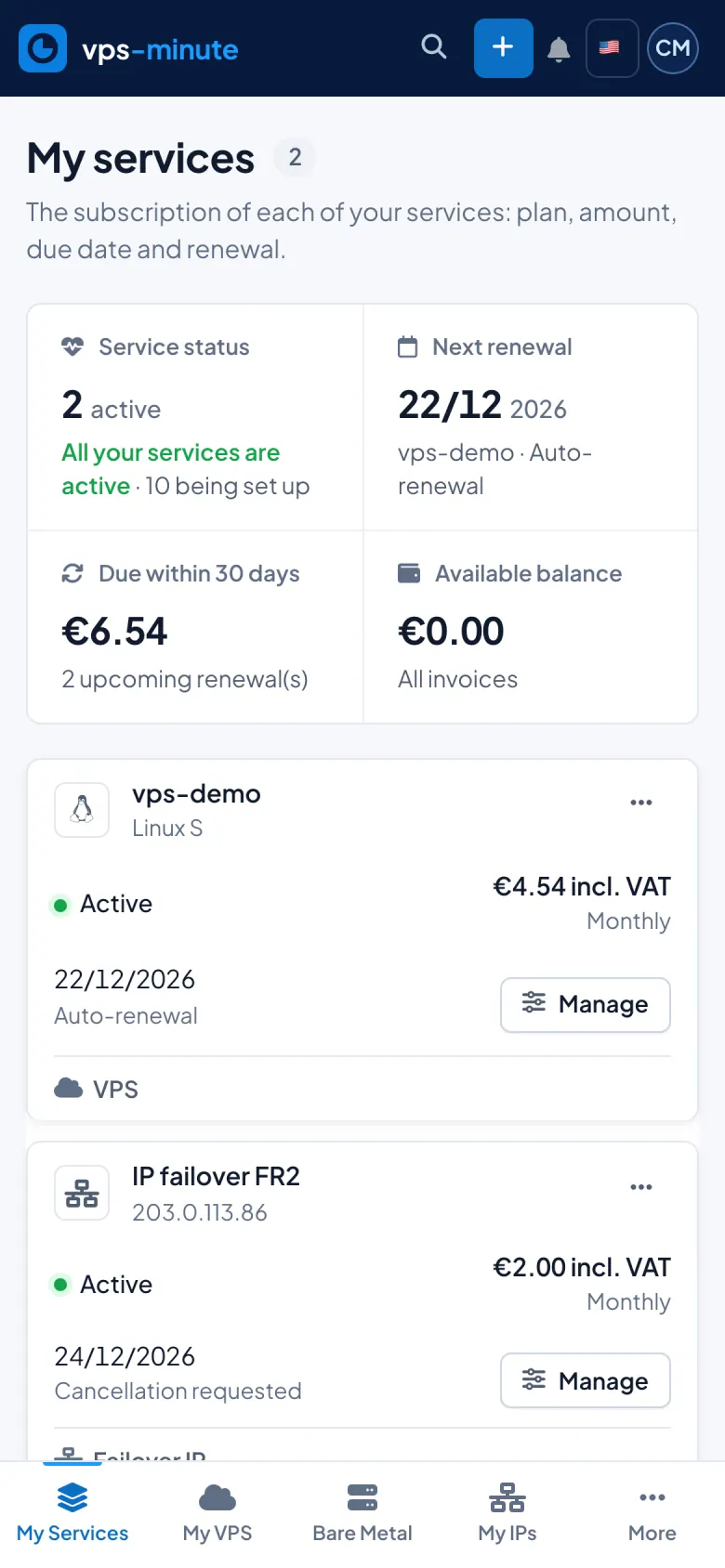
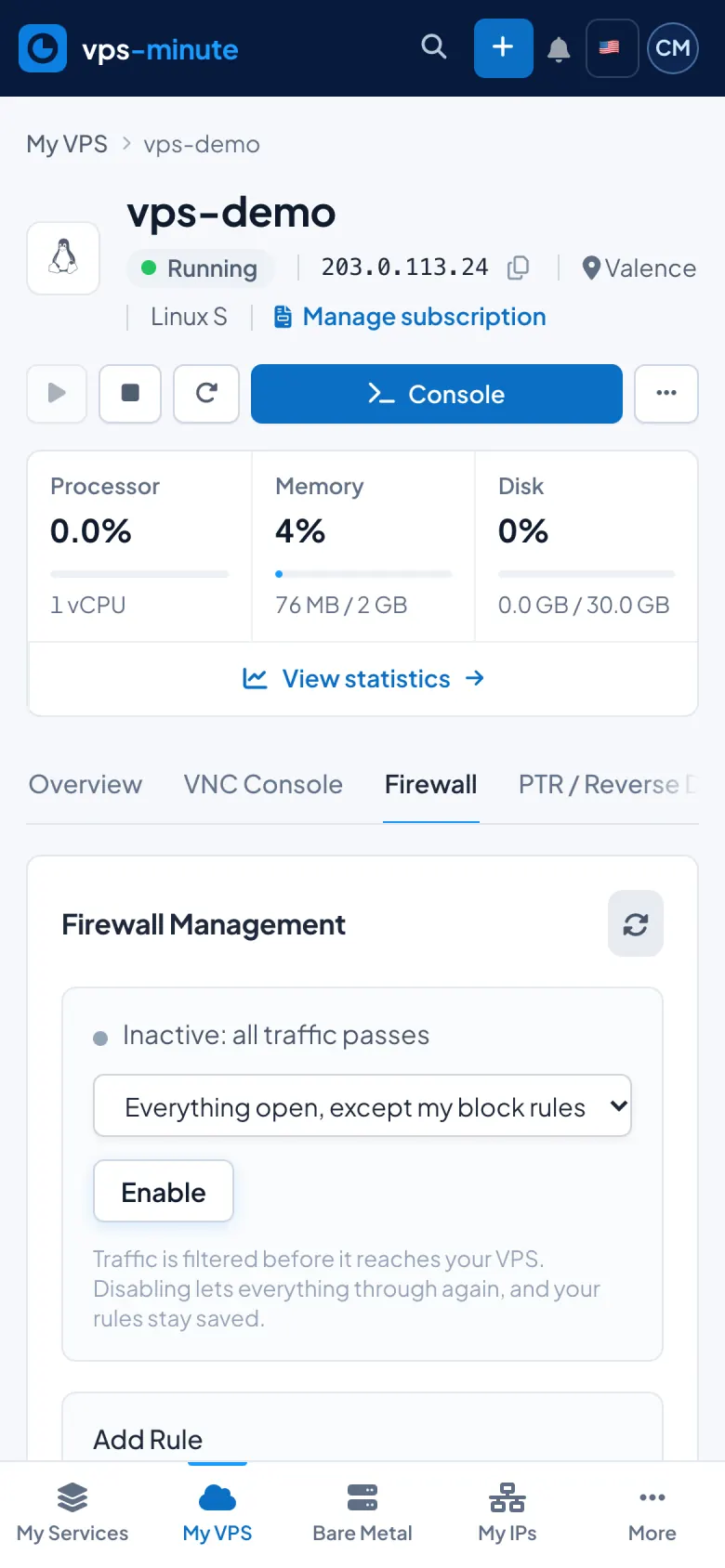
The same console on your phone

On a phone, the bottom bar leads to your services, your VPS, Bare Metal and your IPs, and the VPS page keeps its buttons at the top of the screen.

My Services page on a phone
Your services
Firewall tab of a VPS on a phone
The firewall of a VPS

Your VPS is ready in one minute

Pick a plan, pay by card or SEPA, get your credentials.